
Remove an app
Stop saving an app's notifications. Do this before you uninstall that app.
iPhone
Step 1. Open your shortcut, then tap Edit
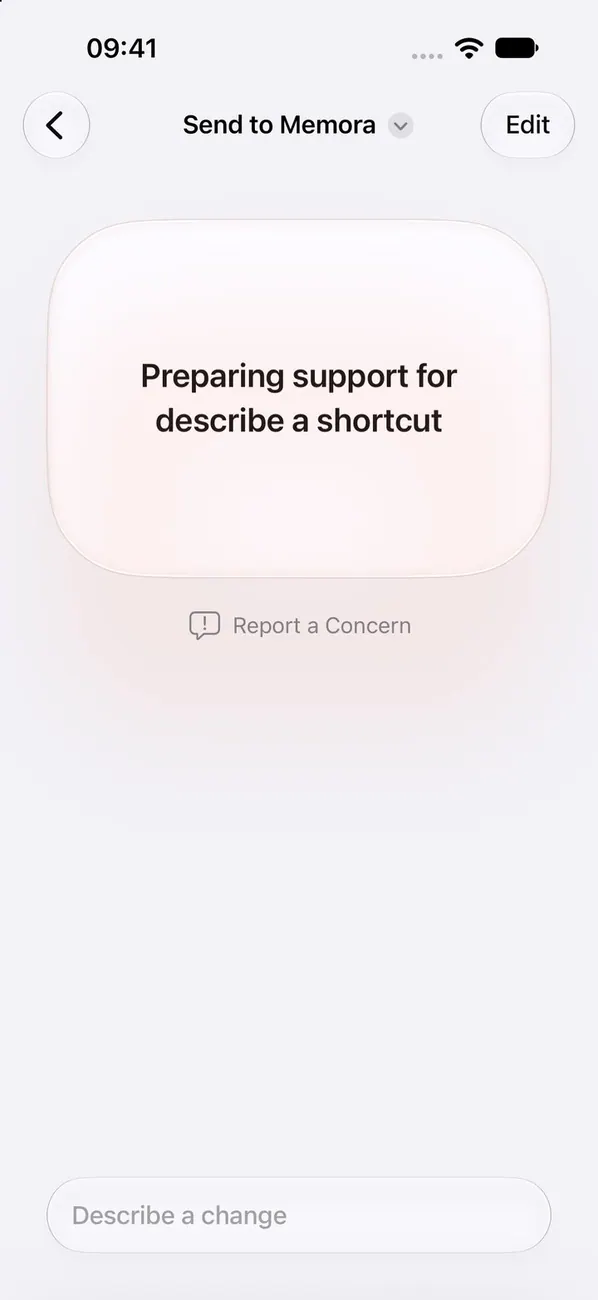
Open Shortcuts takes you to “Send to Memora”. If you see this screen, tap Edit at the top.
Step 2. Tap the app you want to remove
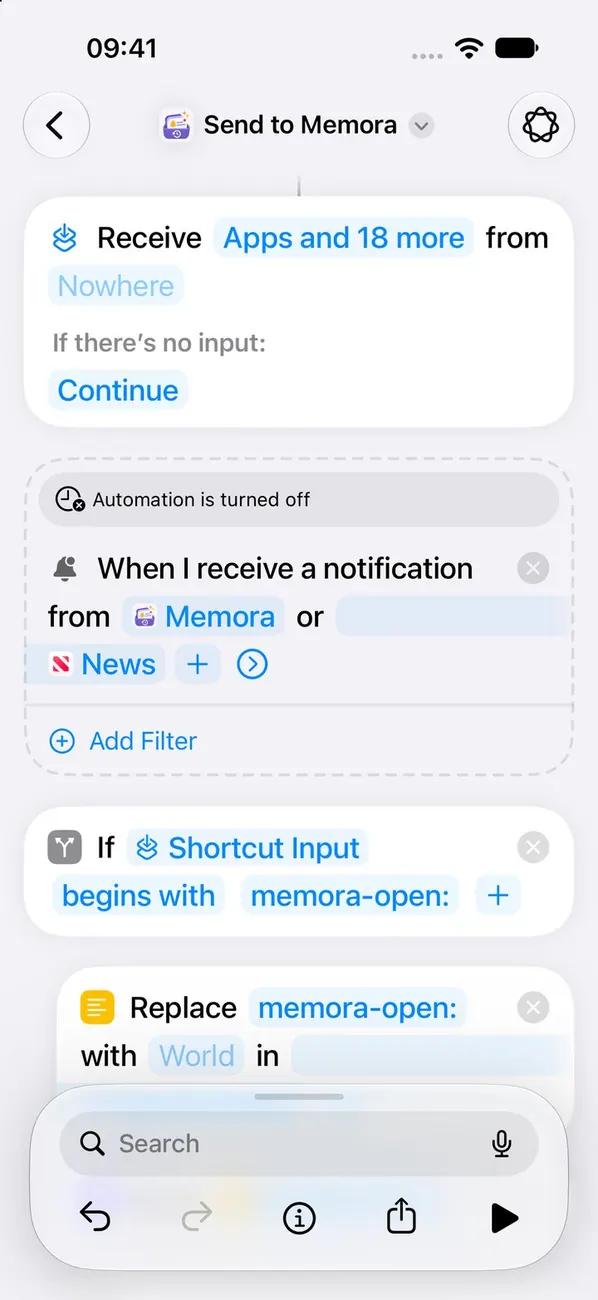
In the “When I receive a notification from” line, tap that app’s name. Keep Memora in the list.
Step 3. Tap Clear
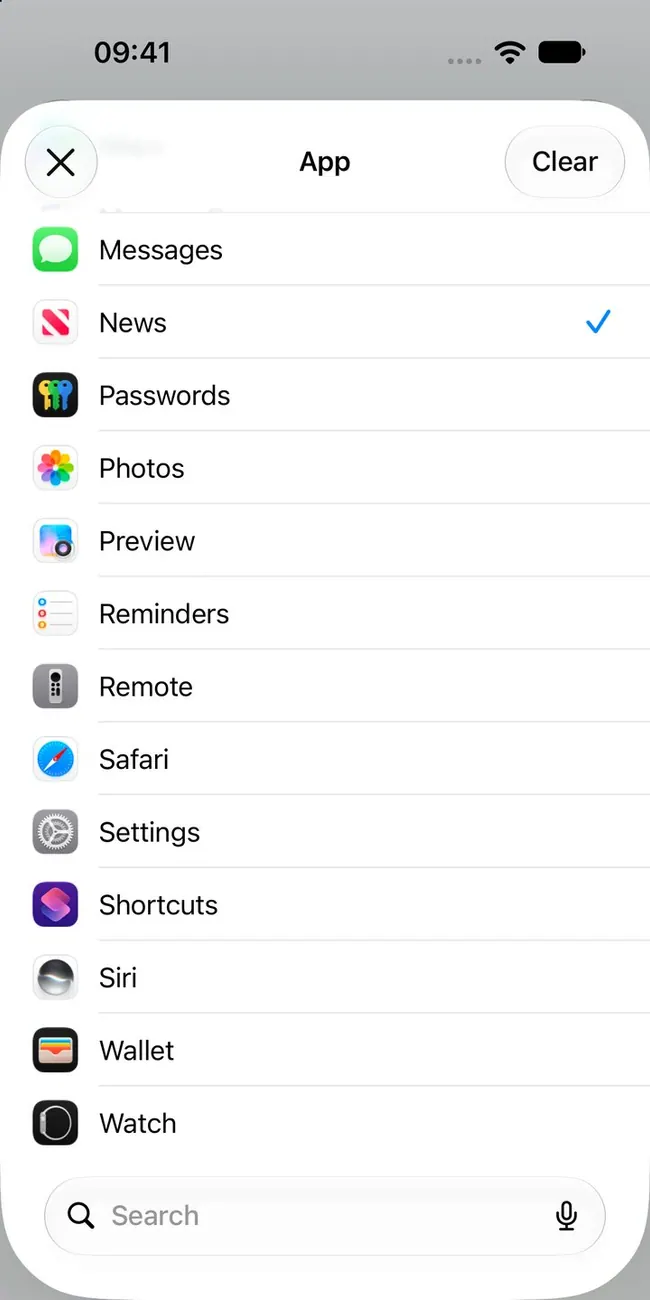
The app leaves the list and Memora stops saving its notifications.
Step 4. Save your changes
Close the list, then finish editing the shortcut so Shortcuts keeps your changes.
iPad
Step 1. Open your shortcut, then tap Edit
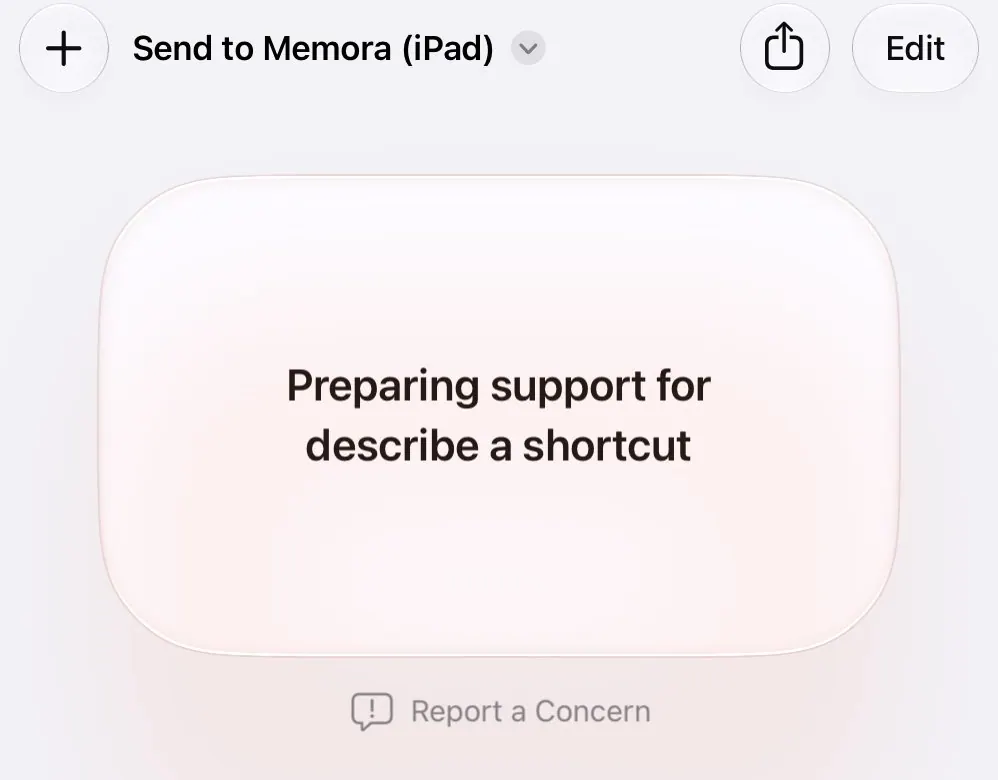
Open Shortcuts takes you to “Send to Memora (iPad)”. If you see this screen, tap Edit at the top.
Step 2. Tap the app you want to remove
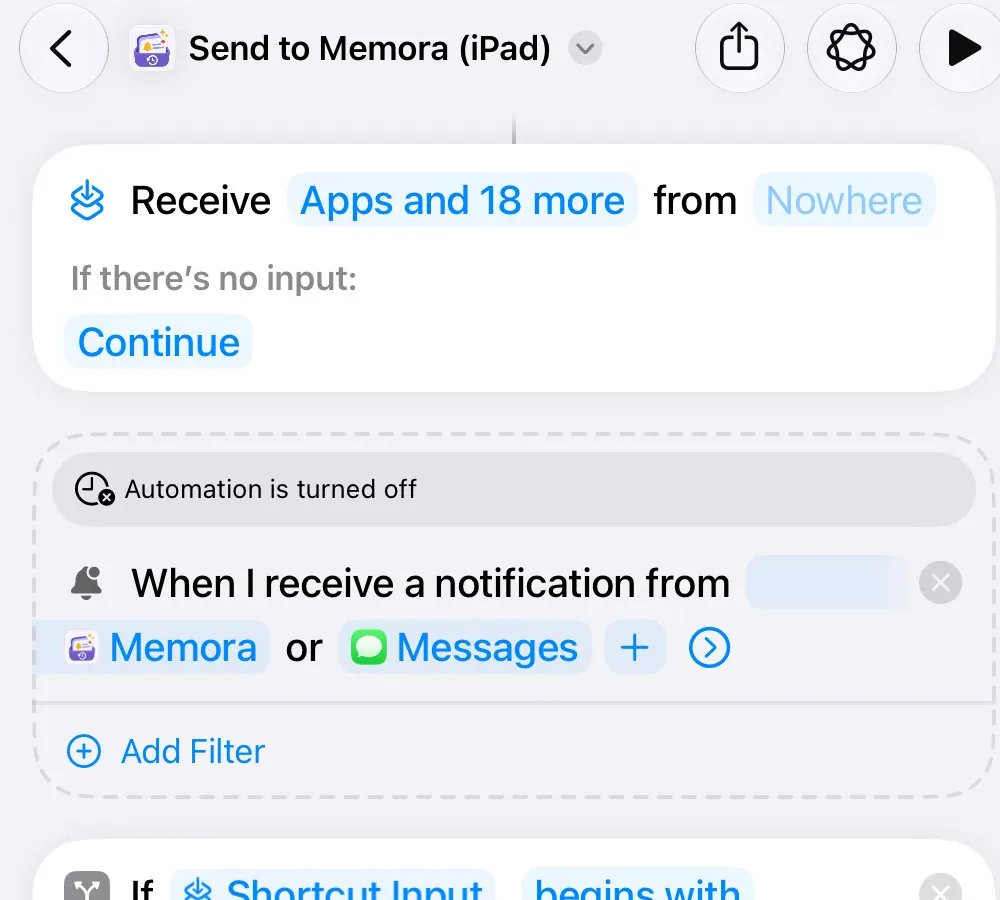
In the “When I receive a notification from” line, tap that app’s name. Keep Memora in the list.
Step 3. Tap Clear
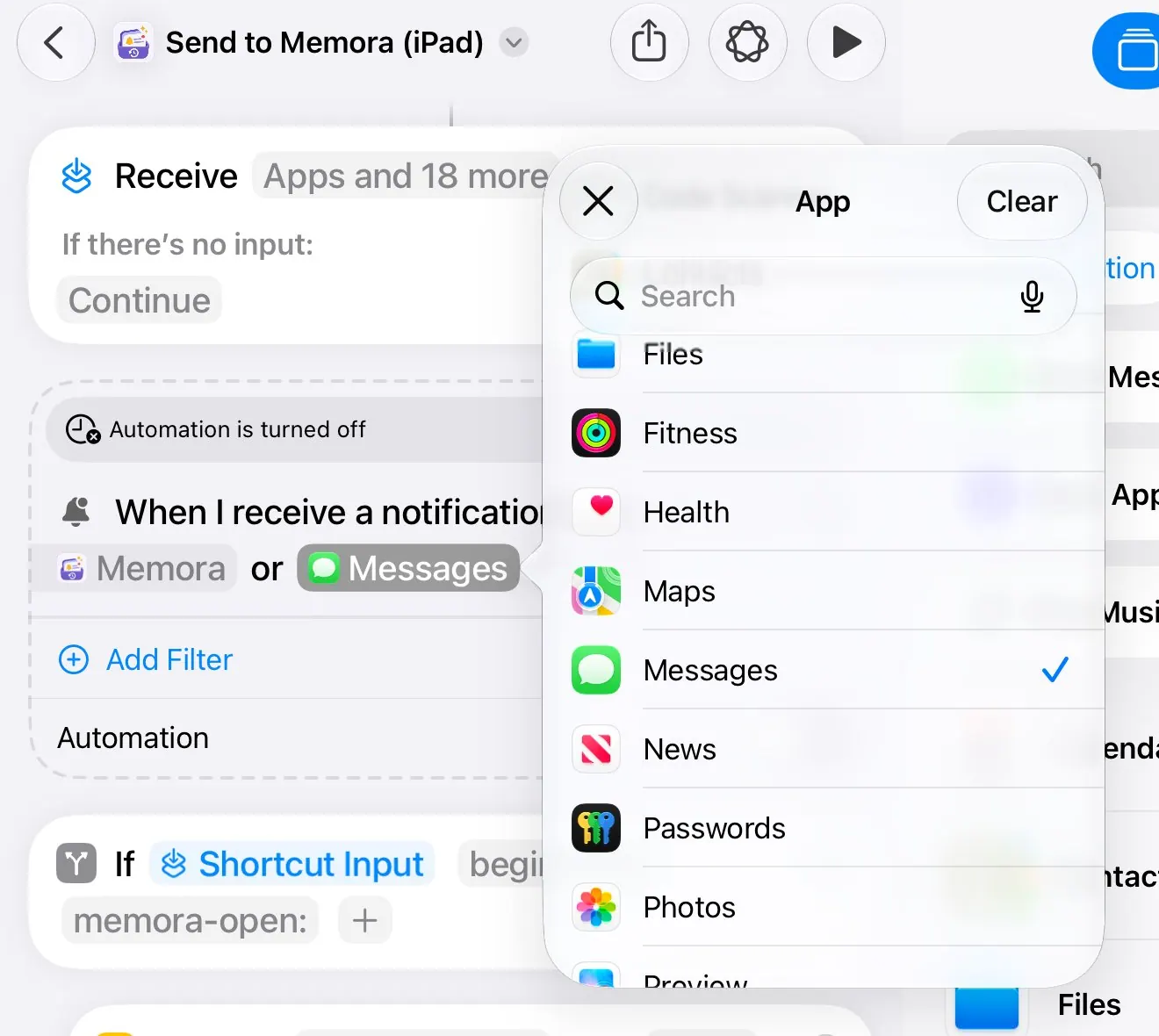
The app leaves the list and Memora stops saving its notifications.
Step 4. Save your changes
Close the list, then finish editing the shortcut so Shortcuts keeps your changes.
Mac
Step 1. Open the shortcut
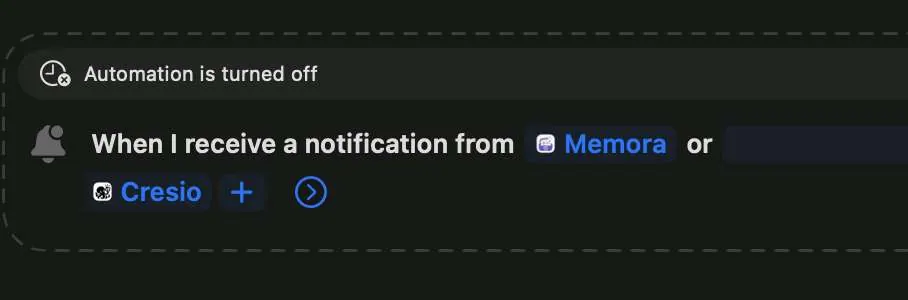
Open Shortcuts takes you to “Send to Memora (Mac)”.
Step 2. Change or remove an app
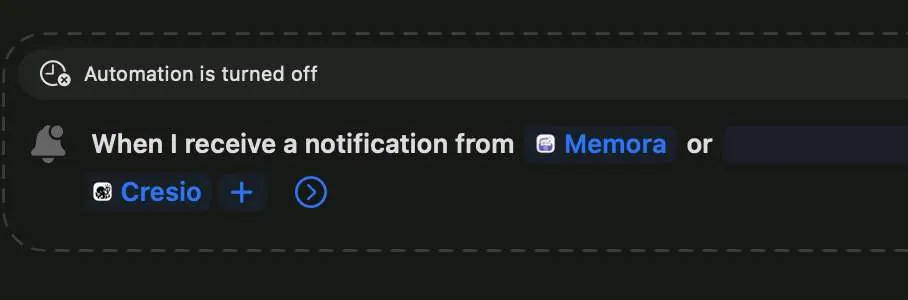
Click the app you want to change or remove in the trigger.
Step 3. Change or remove an app
Click an app in the trigger, then pick another app in the list to swap it.
Step 4. Save your changes
Close the list, then finish editing the shortcut so Shortcuts keeps your changes.
Still stuck?
Email us at cynstudio.app@gmail.com