
Guide
Turn Automation on
Switch the shortcut's Automation back on if Memora stopped saving notifications.
iPhone
Step 1. Open your shortcut, then tap Edit
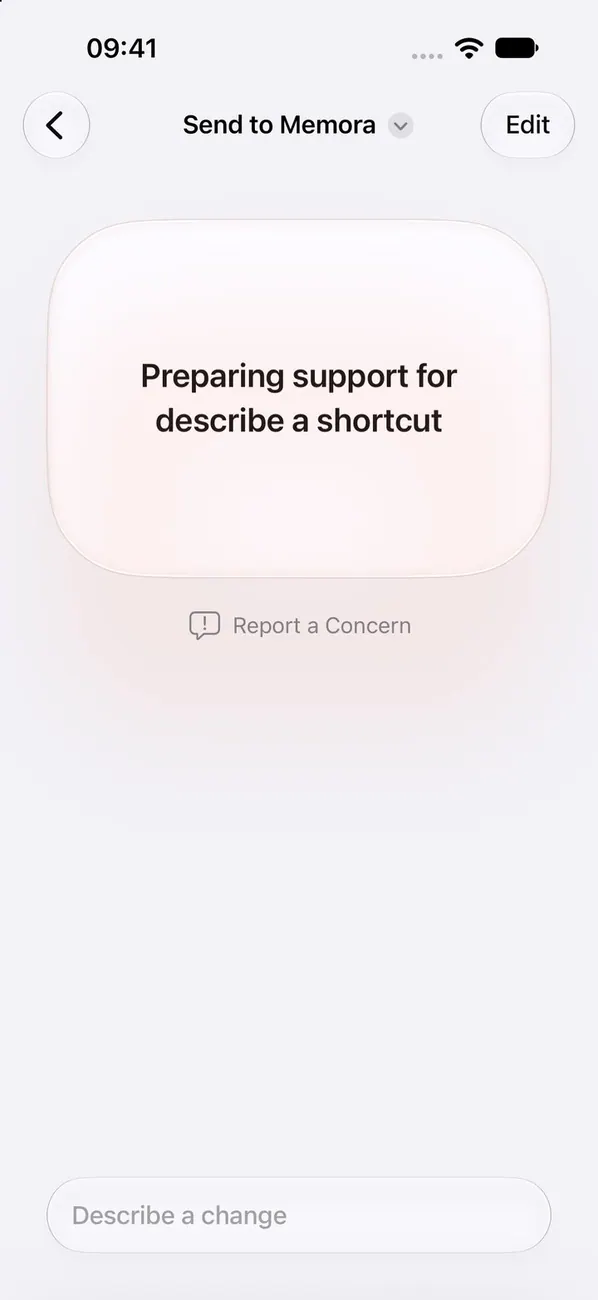
Open Shortcuts takes you to “Send to Memora”. If you see this screen, tap Edit at the top.
Step 2. Tap the arrow to show more
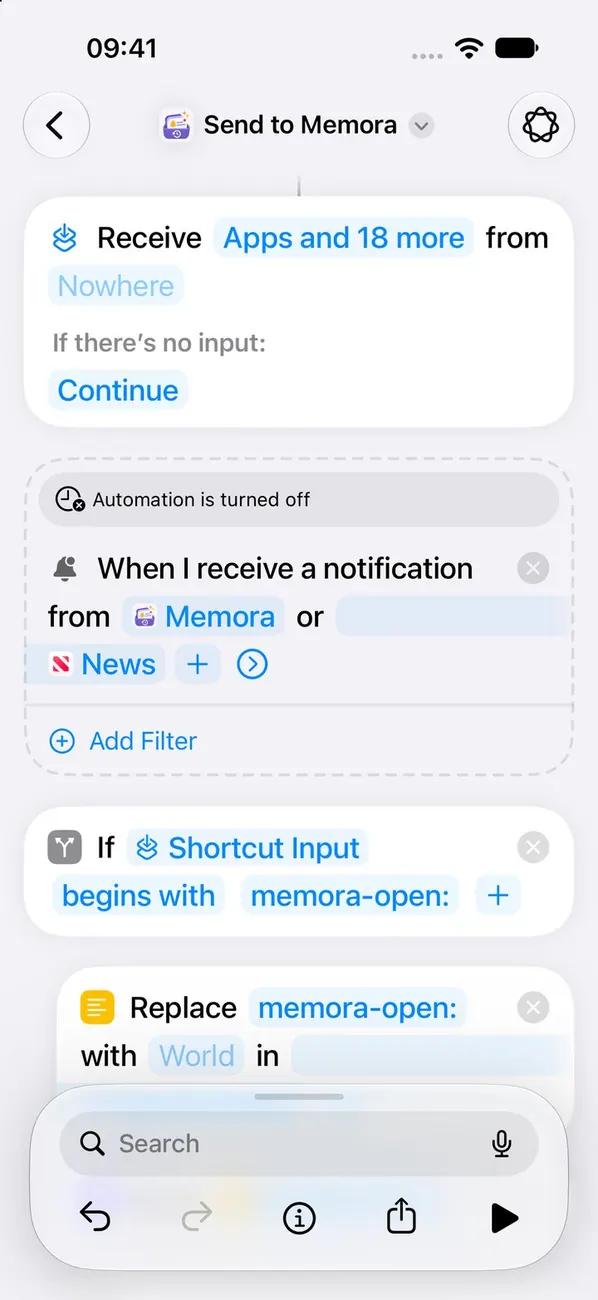
The switch that turns the shortcut on is hidden under this arrow.
Step 3. Turn on Automation
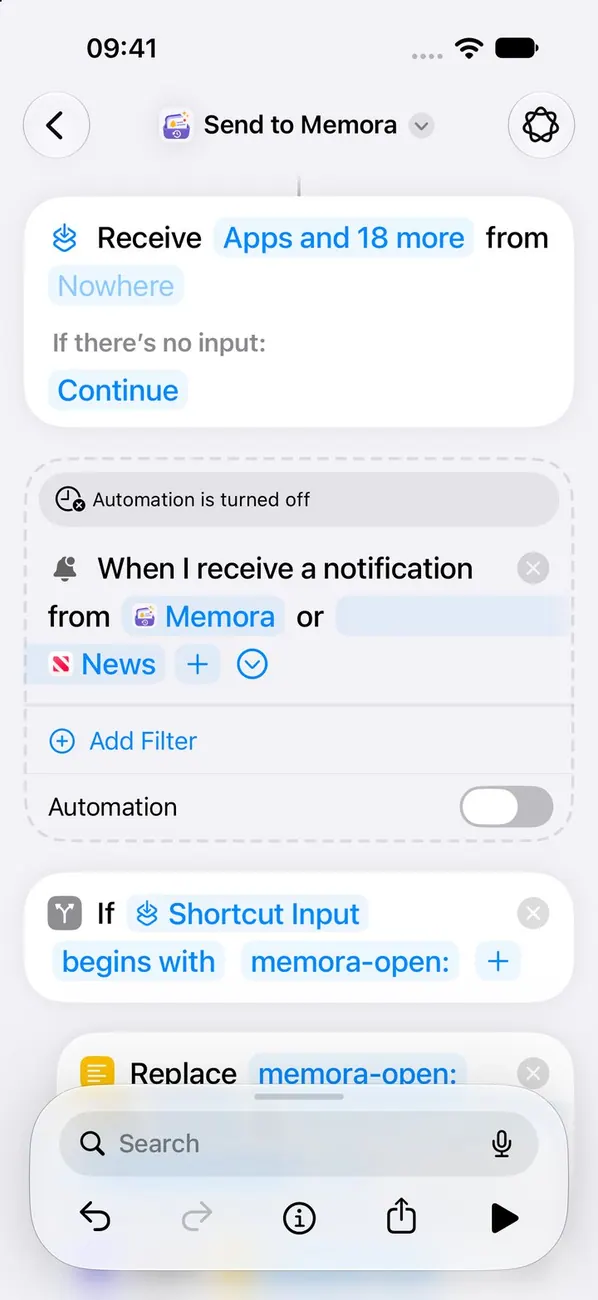 Important
This is the most important step. While it's off, nothing is saved.
iPad
Step 1. Open your shortcut, then tap Edit
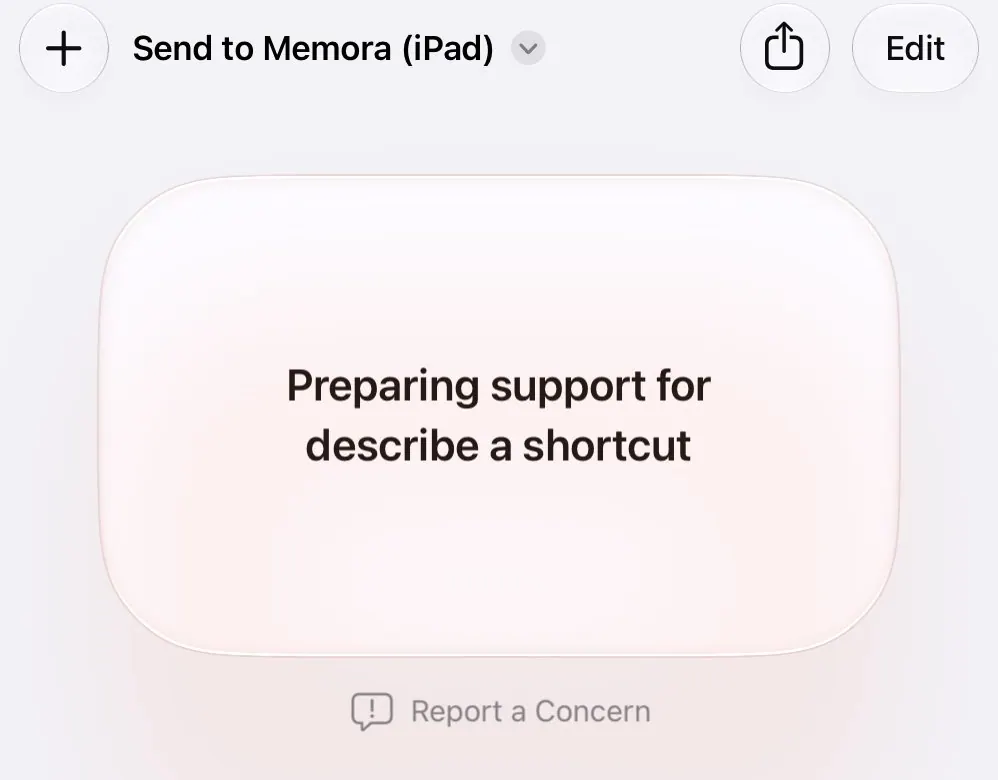
Open Shortcuts takes you to “Send to Memora (iPad)”. If you see this screen, tap Edit at the top.
Step 2. Tap the arrow to show more
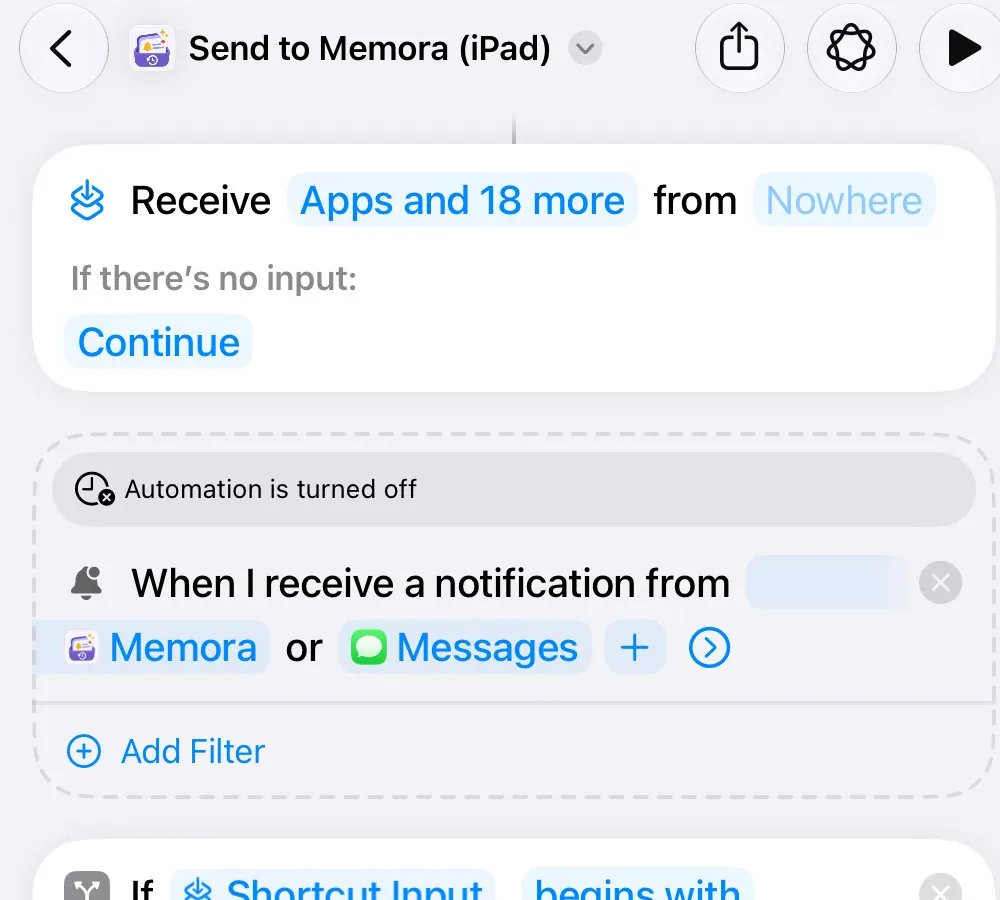
The switch that turns the shortcut on is hidden under this arrow.
Step 3. Turn on Automation
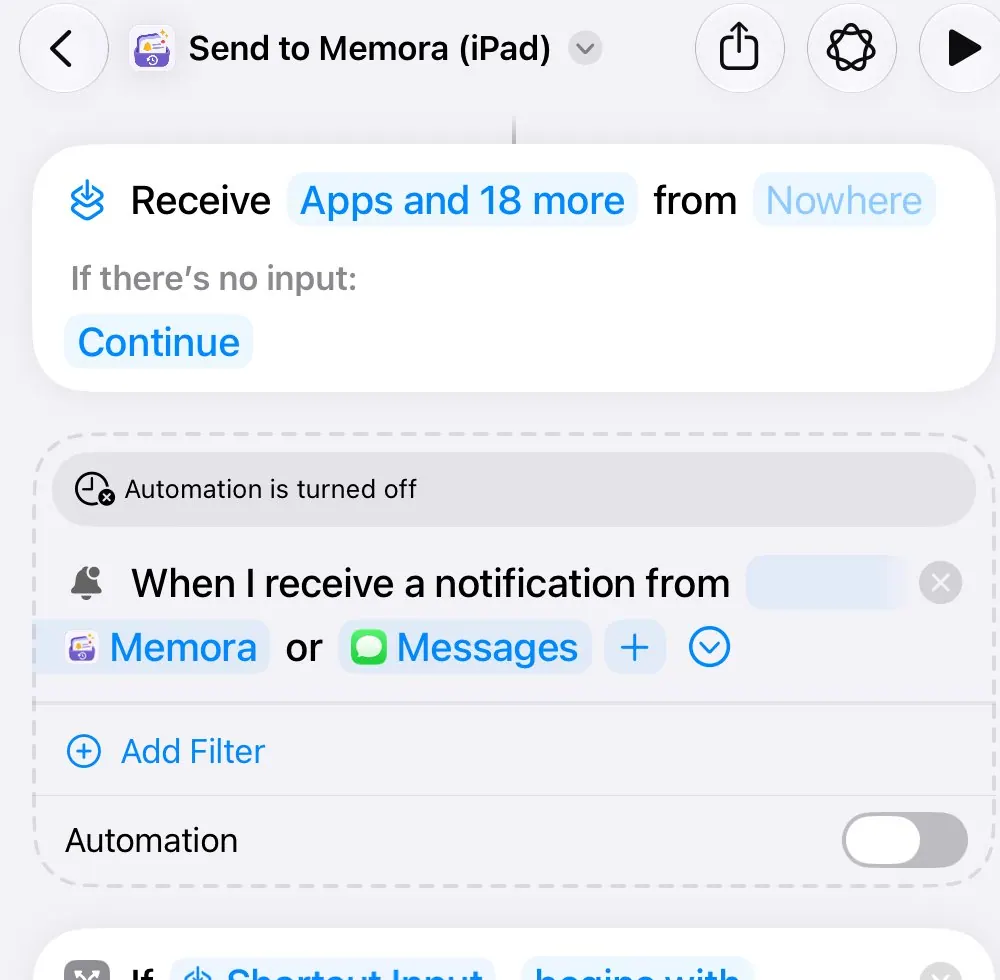 Important
This is the most important step. While it's off, nothing is saved.
Mac
Step 1. Open the shortcut
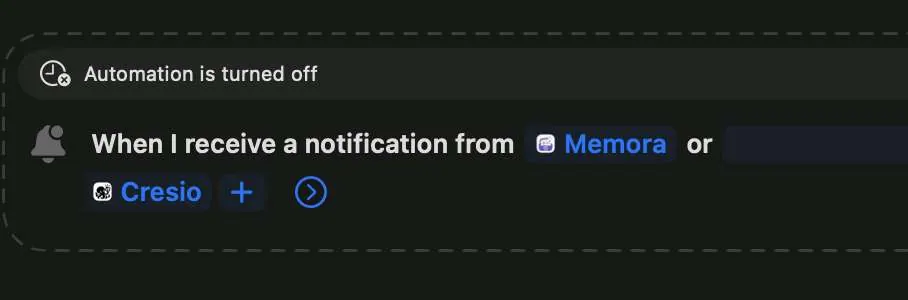
Open Shortcuts takes you to “Send to Memora (Mac)”.
Step 2. Turn on Automation
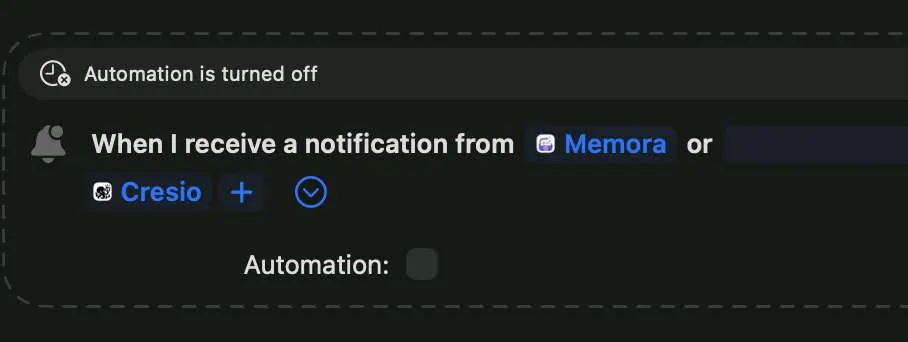 Important
Click the arrow, then tick Automation. While it's off, nothing is saved.
Still stuck?
Email us at cynstudio.app@gmail.com